Why Your Website Breaks After Every Update
Website maintenance should make updates safer. I explain why plugins, themes and code break, and the process I use to protect client websites.
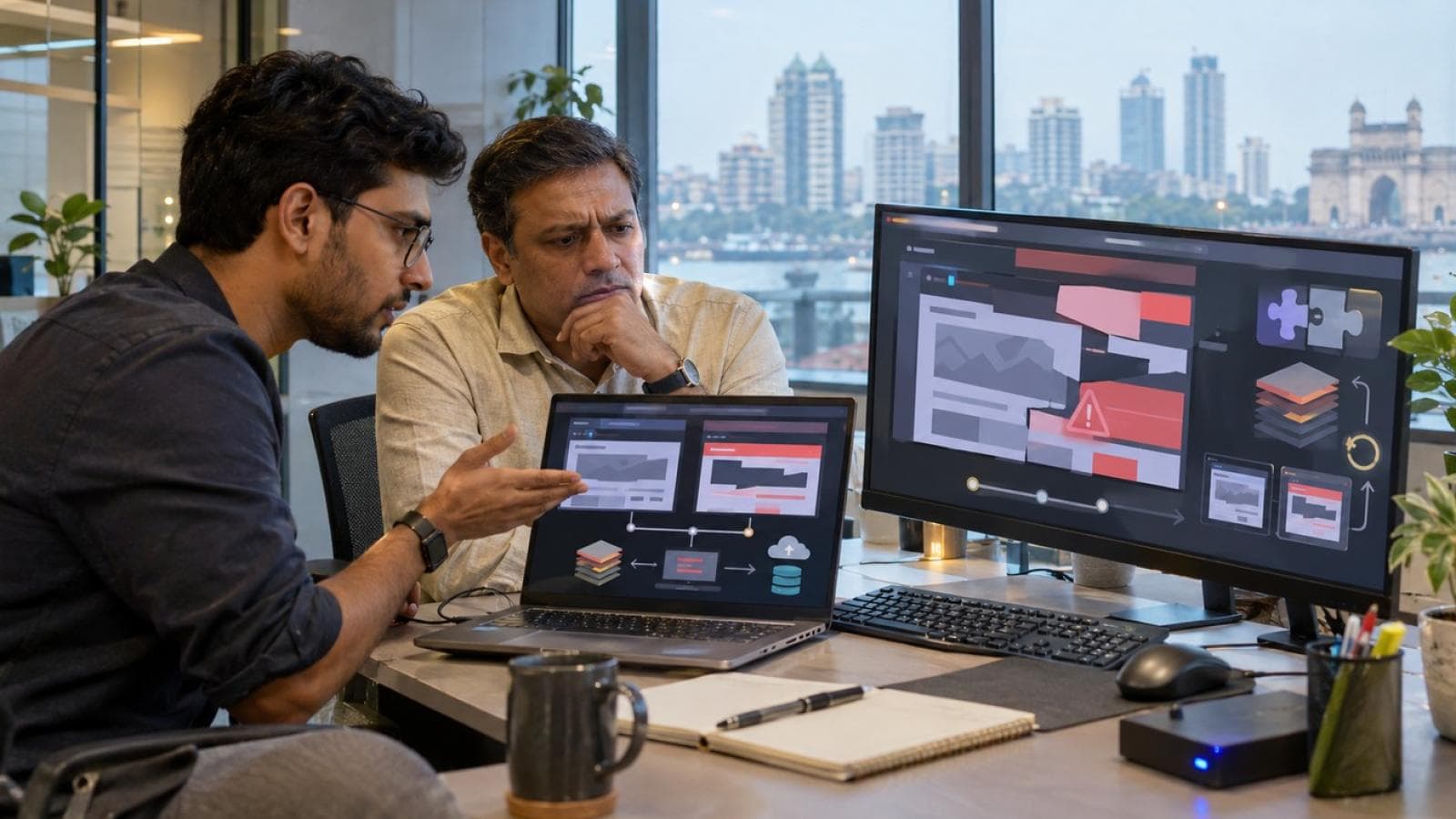
A routine update should not break a healthy website. When it does, the update usually exposed a dependency, compatibility or testing weakness that was already sitting there. That is why I treat website maintenance as a controlled process rather than a "click update" habit, and why Mumbai business owners call me the morning after a plugin update has taken their site down.
If you want the fundamentals first, my guide on why website maintenance keeps a site secure, fast and up to date covers them. This article is about the narrower problem: updates that go wrong, why they go wrong, and the process I use so they don't.
What Actually Happens When an Update Breaks a Website
An update-induced failure is any loss of function, layout or speed that appears right after you change a piece of software on the site. The software might be a plugin, a theme, CMS core, a framework package or the server runtime. The update is the trigger. The cause is usually older.
I sort these failures into two groups, because each is caught differently.
- Visible failures: blank white pages, fatal error messages, missing styles, a broken menu, or a login screen that loops back on itself. Someone notices within minutes.
- Silent failures: a contact form that stops sending, a checkout that fails at the payment step, tracking tags that stop firing, an API connection that returns errors, or pages that load more slowly than yesterday. Nobody notices for days.
Silent failures cost the most, because every enquiry or order lost in the gap is invisible. A WooCommerce store whose payment button disappears after a theme update still looks perfect on the homepage while orders quietly drop to zero. A slower page rarely raises an alarm either, which is why I include a check from my guide on diagnosing a slow website in every post-update review.
Why Websites Break After Updates
Websites break after updates for seven recurring reasons. None of them is a case for postponing updates. Security patches still need to go out, and an unpatched site carries its own risk. The fix is to update with a safety net, not to stop updating.
1. Plugin or Package Dependency Conflicts
Symptom: the site shows a fatal error or a feature disappears right after one plugin or package updates. Reason: two components rely on the same underlying library or function, and the new version changes how it behaves. The second component was written for the old behaviour. A form plugin and a caching plugin that both rewrite the same script are a classic pair. My approach: I update one component at a time on a staging copy, so the culprit is obvious, and I read the release notes for removed or renamed functions first.
2. Theme or Custom-Code Incompatibility
Symptom: the layout shifts, buttons stop working or a custom feature vanishes. Reason: custom code often relies on undocumented behaviour, such as a template hook or an internal function that was never promised to stay stable. When the parent software changes it, the custom code fails quietly. My approach: I document custom code, keep it in version control and move overrides into a child theme or a small plugin, so an update cannot overwrite them.
3. Runtime Changes: PHP, Node.js and Framework Versions
Symptom: pages turn into errors after a hosting upgrade or a major version bump. Reason: a newer PHP or Node.js version removes features that older plugins or packages still call. Framework upgrades do the same with their own APIs. Next.js sites have their own update responsibilities, which I cover in my Next.js security and performance guide. My approach: I confirm every component supports the target version before the runtime changes, and I test on a staging server running that exact version.
4. Database Migrations and Schema Mismatches
Symptom: product pages show errors, orders disappear from reports or admin screens fail to load. Reason: an update expects a database table or column that the migration did not create, or an interrupted migration left the schema half-changed. My approach: I take a verified database backup first, run migrations on staging, and check that the migration finished before touching production.
5. Configuration Differences Between Development and Production
Symptom: everything worked on the developer's machine, and production fails. Reason: environment drift. Production has a different PHP version, a missing extension, different file permissions or a changed environment variable. My approach: I keep staging as close to production as the hosting allows and record the environment settings, so a difference shows up as a line in a checklist instead of a mystery at 11 p.m. on a Friday.
6. Stale Caches, CDN Assets and Compiled Files
Symptom: the site looks half-updated, with new HTML and old styles, or visitors see different things from your own screen. Reason: the browser, the CDN, the object cache or a compiled asset bundle still serves the previous version. A stylesheet keeps its filename after a theme update, and the CDN happily serves the old copy for hours. My approach: after each update I clear caches in a set order, rebuild compiled assets, purge the CDN and then verify in a private browser window.
7. Unsupported Software and Accumulated Technical Debt
Symptom: every update breaks something, and the list of "don't touch that" plugins keeps growing. Reason: abandoned plugins and old dependencies stop receiving compatibility fixes, so each core update widens the gap. Technical debt does not break the site until an update forces the issue. My approach: I inventory what is still maintained, replace what isn't, and fold the update work into a regular routine like the one in my website security and maintenance checklist.
Key statistics on software update risk
- 11,334 new vulnerabilities were found in the WordPress ecosystem in 2025, a 42% increase on 2024, and 91% of them were in plugins (Patchstack, State of WordPress Security in 2026, updated 25 February 2026). Source: Patchstack
- 46% of vulnerabilities had no developer fix available when they were publicly disclosed, and the median time to mass exploitation of heavily exploited vulnerabilities was 5 hours (Patchstack, 2025 data). Source: Patchstack
- 31% of breaches now start with software vulnerabilities, ahead of stolen passwords as the top way attackers get in (Verizon 2026 Data Breach Investigations Report, incidents from 1 November 2024 to 31 October 2025). Source: Verizon DBIR
Warning Signs That a Website Is Unsafe to Update
A website is unsafe to update when you cannot undo the update, test it first or see it fail. I check for these nine warning signs before I touch a client's production site.
- No recent backup, or no tested restore. A backup you have never restored is only a hope.
- No staging environment. Every update becomes a live experiment on your customers.
- Abandoned plugins or dependencies. If the author stopped releasing fixes, the next core update may break it.
- Undocumented custom code. Nobody knows what depends on what.
- Unsupported runtime versions. An end-of-life PHP or Node.js version limits which updates can even install.
- No version control. You cannot see what changed or return to what worked.
- No regression checklist. Nobody knows which journeys to test, so nobody tests them.
- Several people updating without an owner. Two administrators updating on the same afternoon make a failure nearly impossible to trace.
- No uptime or error monitoring. You learn about failures from customers.
Three or more of these on one site means the next update is a risk worth planning, not rushing.
Not sure how many of these warning signs your site has? I can run an update-readiness check on your backups, staging, plugins and runtime before your next production update.
Book an update-readiness reviewThe Safe Website Update Process I Use
A safe website update is a repeatable sequence in which every change can be tested and reversed. Here is the order I follow.
- Inventory the current stack. I list the CMS version, plugins, themes, packages, runtime and hosting settings.
- Read release notes and compatibility warnings. Removed functions and minimum version changes appear here first.
- Take verified file and database backups. I confirm the backup files exist and open correctly.
- Reproduce production on staging. Same versions, same data copy, same configuration where possible.
- Update one controlled layer at a time. Core, then plugins, then themes, so a failure points to one change.
- Test the critical customer journeys. Contact forms, checkout, login, search and mobile layouts, plus a pass through my cross-browser website testing workflow.
- Deploy in a controlled window. I pick the quietest hour in your traffic and keep the person who can approve a rollback on call.
- Clear caches and verify generated assets. Application cache, CDN, compiled files, then a private browser check.
- Monitor logs, uptime, forms, payments and analytics. I watch them for at least the first day.
- Keep a tested rollback path. I know exactly which backup or version I would restore, and I have tried it.
What I Do When an Update Has Already Broken Production
Once a live site is broken, the priority is to stop the damage and get back to a known working state. This is my sequence.
- Stop further changes. No more updates, no new plugins, no "quick fixes" in parallel.
- Record the failure and the time. What broke, when, and what was updated just before.
- Show a safe maintenance state only when necessary. If visitors are hitting errors or a checkout is failing, a maintenance page is better than a broken one.
- Inspect the logs and recent changes. Server error logs, application logs and the update history usually name the culprit.
- Roll back the specific update, or restore a verified backup. I choose the smallest change that returns the site to a working state.
- Test forms, checkout, login, tracking and mobile layouts. A working homepage does not mean a working business.
- Fix the root cause before trying the update again. Repeating the same update on the same site repeats the same failure.
Do not reinstall the same plugin over and over, and do not restore an unknown backup in a panic. A backup of unknown age can overwrite orders and enquiries received after it was taken.
Watch: "How to Rollback WordPress & Undo WordPress Updates" by WPBeginner - WordPress Tutorials shows the rollback steps on screen.
Watch on YouTube: How to Rollback WordPress & Undo WordPress Updates
When I Repair the Existing Website and When I Recommend a Rebuild
Most broken-update problems call for repair, not a rebuild. I decide by checking three things: whether the platform is still supported, how isolated the failure is, and what keeps coming back.
I repair when the platform is still supported and the failure is isolated. One plugin conflict or one outdated theme template is a contained fix.
I refactor when repeated conflicts trace back to custom code or tightly coupled dependencies. Rewriting that one layer is cheaper than fighting it after every update.
I recommend a rebuild only when the platform is unsupported, the security exposure is material, testing is impossible, or repair costs keep compounding. If you are in that position, my article on when a website needs a redesign instead of repairs walks through the signals. A single plugin conflict is often an afternoon's work, while a rebuild is weeks of effort, so a rebuild is a business decision, not a reflex.
Reference reading
- Upgrading WordPress in the Advanced Administration Handbook, covering backups and plugin troubleshooting
- WordPress Backups handbook, on files, databases and restore order
- OWASP Top 10:2025 on software supply chain failures, including outdated components and staged rollouts
Frequently Asked Questions
Why does my website break after an update?
A website breaks after an update because the new version no longer matches something the site already depends on, such as another plugin, custom code, the PHP version or a database structure. The update exposes an existing weakness rather than creating one from nothing. Testing on a staging copy first catches most of these before visitors see them.
Should I update all plugins, themes and core software at once?
No. Updating everything at once makes a failure almost impossible to trace. I update core, plugins and themes one layer at a time on staging, test, and then repeat the same sequence on production.
How can I update a WordPress website safely?
Take a verified backup of files and database, copy the site to staging, update one layer at a time, and test your forms, checkout and login. Deploy in a quiet window and keep a rollback path ready. Skipping staging is the most common reason a WordPress update turns into an outage.
Can a broken website be rolled back after an update?
Usually yes, if a recent backup or the previous version exists. You can roll back the single plugin or theme, or restore a verified backup, and I test forms, checkout and tracking afterwards. Restoring an old backup without checking its age can overwrite newer orders and enquiries.
Do I need a website maintenance plan for updates?
If your website brings in enquiries or sales, yes. A website support plan gives updates an owner, a staging environment, tested backups and monitoring, which are the four things that prevent most update failures. It turns update failures from emergencies into scheduled work.
Book a Website Maintenance Review Before Your Next Update
Do not wait for the next failed update to find out whether your backups restore and your staging site matches production. Ask for an update-readiness review before the next production update, and I will tell you what is safe to update now and what needs work first.
Planning a plugin, theme or PHP update soon? Let me check your backups, staging setup and rollback path first.
Request a website maintenance review