30 Photography Websites for Modern Web Design Inspiration
A design-led look at 30 photographer portfolios, from full-bleed heroes to quiet text-led pages, with screenshots and practical ideas for your own site.
Why we looked at these thirty sites
A photography website has an unusual job. The pictures are the product, yet the page around them decides whether a stranger stays long enough to see the work, understands what you offer, and knows how to hire you. This roundup studies thirty portfolios that approach that problem in very different ways: full-bleed heroes, dense colour grids, one-image galleries, text-led introductions and shop-first menus.
The list started as a set of researched candidates. We opened each live site in a clean browser session, waited five minutes for slow media and delayed pop-ups, and captured the top 1380 pixels of a 1920-pixel-wide desktop window. Where a candidate loaded blank, hit a bot challenge, crashed the browser or kept an obstructive overlay on screen, we say so in the notes and substitute another portfolio rather than hide it.
Every comment describes what is visible in that screenshot. We did not test mobile layouts, hover effects, animation, speed or accessibility conformance, so we make no claims about them. Great photography and great web design are not the same thing, and the entries below try to keep them apart.
Why photography website design matters
Visitors judge a portfolio within seconds. A page that loads cleanly, presents images at a sensible size and signals what you shoot lets the work do its job. A page that buries the pictures under oversized menus, tiny type or unexplained icons makes strong photography look weaker than it is.
Design also carries commercial information that a photograph cannot. Menu labels such as Commissions, Prints or Workshops tell buyers which services exist. Project titles help an art director judge relevance. A visible email address or contact link removes the last bit of friction between admiration and an enquiry. Several sites below do this well; a few leave it to chance.
Finally, the website is part of the brand. A deep green panel, a handwritten logo or a black stage is a design decision that tells people what kind of photographer to expect before they have looked at a single frame.
What to evaluate on a photography site
- Composition and hierarchy: what the eye sees first, and whether the page guides it.
- Grid, spacing and sequencing: how images are sized, ordered and separated.
- Typography: readable sizes, contrast and a voice that suits the work.
- Palette: whether the page colours support the photographs or compete with them.
- Navigation and project discovery: how quickly a visitor finds a body of work.
- Next steps: clarity of contact, commission, print or book routes.
Each entry ends with a practical takeaway and, where the screenshot supports it, a fair limitation.
Contents
- Scott Snyder
- Margaret Rajic
- Levon Biss
- Benjamin Hardman
- Alex Strohl
- Julia & Gil
- Lara Jade
- Jessica Chou
- Mike Kelley
- Eva Kolenko
- Brandon Woelfel
- Martin Schoeller
- Alan Schaller
- Albert Watson
- Jeremy Cowart
- Nick Knight
- Dave Hill
- Steve McCurry
- Donald Miralle
- Dan Winters
- Joel Meyerowitz
- Paul Nicklen
- Jimmy Chin
- Samuel Zeller
- Andreas Gursky
- Andrea Gjestvang
- Ravi Vora
- Meiwen See
- Florian Schulz
- Chris Burkard
1. Scott Snyder: Staggered Product Frames on a Warm Off-White Field
 Desktop top-region capture: offset image blocks showing Sonos product photography.
Scott Snyder's top region does one thing: it lets commercial product work breathe. Three images of different sizes sit on a warm off-white canvas at deliberately uneven offsets, so the eye moves in a loose zigzag instead of marching down a rigid grid. Navigation is cut to two words plus an Instagram icon, which keeps the handwritten logo and the pictures in charge. The staggered placement also hides the fact that every image is a tidy studio shot of a single product family.
Design takeaway: If your work is clean and repetitive, vary frame size and offset to create rhythm without adding decoration.
Limitation: The capture shows no captions, client names or category cues, so a new visitor must click to learn what services are on offer.
Visit original website (Scott Snyder)
2. Margaret Rajic: A Split-Screen Studio Identity in Forest Green
 Desktop top-region capture: fixed green name panel beside a numbered project image.
This is the most branded layout in the set. The left half is a solid forest-green panel carrying a very large high-contrast serif wordmark, while the right half presents one interior photograph with a small '1 — 5' counter and project title, 'Queen Anne'. Hairline rules box in the navigation like a table, which gives an architectural, drawn-plan feel suited to interior photography. The photograph's deep brown walls echo the green panel, so palette and subject agree. Project numbering signals a sequence to browse rather than a wall of thumbnails.
Design takeaway: Pick one strong brand colour from your imagery and give it a whole half of the screen.
Limitation: Only one image is visible above the fold, so breadth of work is hidden until visitors scroll or step through.
Visit original website (Margaret Rajic)
3. Levon Biss: Specimen Photography Sets a Museum-Like Overview Grid
 Desktop top-region capture: three-column overview of macro specimen photographs.
Levon Biss lets extreme macro imagery do the work, and the interface stays out of its way. A plain black wordmark and an eight-item menu, including Shop, Books and Exhibitions, sit on white above a tight three-column masonry grid. Because the specimens are shot on black, cream and amber grounds, the backgrounds alternate like swatches and the page reads as a catalogue. The menu quietly shows several routes to commerce and exhibitions. White margins stay generous so dark images do not feel heavy.
Design takeaway: Show revenue paths such as shop and books in the main nav without letting them compete with the portfolio.
Limitation: No headings or captions explain what the specimens are, so the grid is striking but the story is left to inner pages.
Visit original website (Levon Biss)
4. Benjamin Hardman: A Full-Width Polar Hero with Visible Slider Arrows
 Desktop top-region capture: full-bleed hero image with previous and next arrows.
Benjamin Hardman opens with a single edge-to-edge aerial frame, and the page makes a good case for restraint. The nav bar is a slim white strip with tiny capitalised links, so the photograph owns almost the whole fold. Menu labels such as Courses, Prints and Expeditions show the business model at a glance. The arrow controls at both edges suggest a rotating hero, although only one frame was captured and the behaviour was not tested. The cold blue and white palette is the photograph's, not the interface's.
Design takeaway: A white utility bar plus a full-bleed hero is a dependable way to make a single image feel monumental.
Limitation: The very small navigation type is hard to read against the scale of the hero, and the arrows are low-contrast.
Visit original website (Benjamin Hardman)
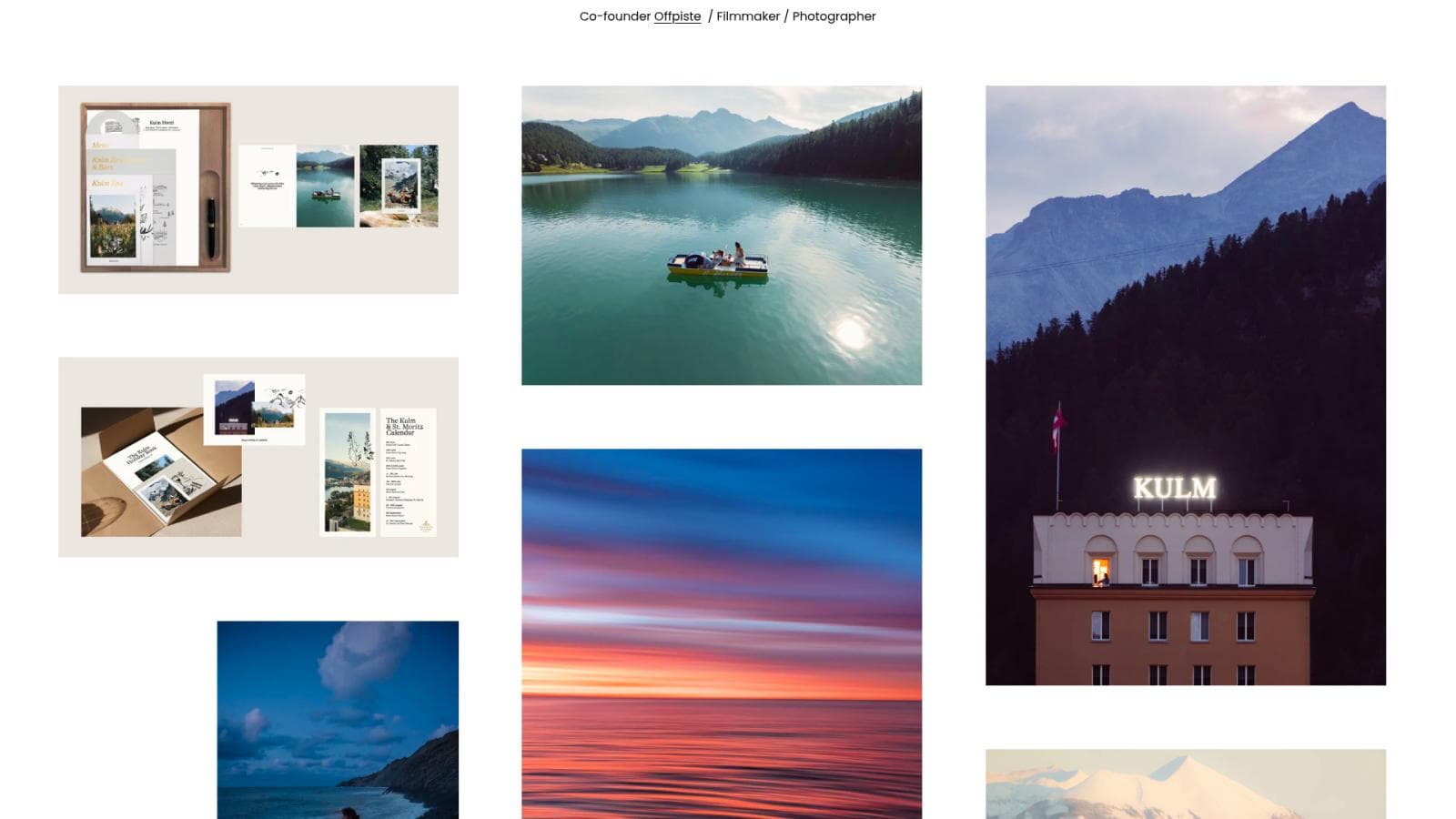
5. Alex Strohl: A Staggered Three-Column Collage with a Centred Logo
 Desktop top-region capture: centred logo, tagline and staggered three-column image field.
Alex Strohl's page is built like a contact sheet that was nudged by hand. Three columns of images start at different heights, mixing mountain and lake landscapes with pale brand-identity mock-ups for a hotel. Above them sit a balanced header, with menu left, logo centre and icons right, and a one-line descriptor that names his roles. That line is the clearest positioning statement in the batch. Whitespace between images is wide enough that the saturated sunset frame becomes a focal point without any text overlay.
Design takeaway: A single descriptor line under the logo tells visitors who you are before they decode the images.
Limitation: Brand-design mock-ups sit beside landscapes with no labelling, which makes the offer slightly harder to categorise.
Visit original website (Alex Strohl)
6. Julia & Gil: Triptych Hero with Editorial Serif Credentials
 Desktop top-region capture: three-up wedding image strip, arrows, and introductory copy.
The first view is a three-panel strip that cuts between a bridal portrait, a candlelit table and a black-and-white child, so tone and range are shown in one glance. A tiny serif menu lists Selected Work, About, FAQ, Feedback and Contact, which answers client questions rather than listing galleries. Below the strip, a serif paragraph names publications and the couple's approach, putting trust signals inside the fold. The arrows beside the strip imply more slides, though that was not exercised. The text column is set off to the right, creating an asymmetrical editorial feel.
Design takeaway: Put a short credibility paragraph directly under your hero for wedding and event clients.
Limitation: The menu text is very small, and the blank left side beside the paragraph feels unresolved.
Visit original website (Julia & Gil)
7. Lara Jade: A Centred Masthead over Dense Beauty Contact-Sheet Rows
 Desktop top-region capture: centred masthead and a four-column grid of beauty and campaign images.
Lara Jade's overview behaves like a magazine index. A centred serif wordmark and a seven-item category menu sit above a rigid four-column grid, so the site communicates specialisms before any image is opened. The top row contains advertising layouts with logos and headlines, while the rows below are tight close-up portraits, which shows both campaign credibility and image quality. Skin tones and cream backgrounds form a consistent palette across the grid. Uniform gutters make the sequence feel curated rather than dumped.
Design takeaway: Use menu categories that mirror how buyers brief photographers, such as Beauty, Fashion and Jewelry.
Limitation: Mixing advertisement layouts with raw portraits in the same row slightly muddies the first impression of her own style.
Visit original website (Lara Jade)
8. Jessica Chou: A Text-Led Project Index Beside a Four-Column Portrait Wall
 Desktop top-region capture: left project list and a four-column portrait grid.
Jessica Chou's page solves project discovery in the sidebar. Each editorial job is listed by subject and publication, such as a streaming series or a magazine, so art buyers can scan clients as quickly as images. The right-hand wall is a tightly packed four-column grid with a deliberate colour mix: saturated reds and yellows sit next to black-and-white portraits, which shows range while keeping spacing consistent. The thin grey sidebar type recedes behind the pictures. Commissions sits last in the list, making the hiring path easy to find but unobtrusive.
Design takeaway: A named project list gives portrait and editorial photographers a second, text-based way in alongside the thumbnails.
Limitation: The sidebar labels are small and light grey, and the longest list wraps onto two lines.
Visit original website (Jessica Chou)
9. Mike Kelley: A Left-Rail Menu with One Large Architectural Frame
 Desktop top-region capture: left navigation rail, a single large architectural photograph and Prev/Next controls.
Mike Kelley's layout is a classic gallery rail, and it works because the menu is so well organised. Portfolio, Projects and Art form one group; About, Books, Print Shop and Contact form another, so commissions, publications and sales are separated by spacing alone. One large misty hillside photograph fills the main area, with tiny Prev / Next and Show Thumbnails controls at the bottom of the rail. The image is so large that it reads as an exhibition print. The page keeps pure white margins, so the warm light in the photograph supplies all of the colour.
Design takeaway: Group your menu by intent, with a visible gap between 'see the work' and 'buy or hire', rather than one flat list.
Limitation: The blank white area below the image and the very small control text leave the lower third of the region feeling empty.
Visit original website (Mike Kelley)
10. Eva Kolenko: A Six-Column Colour Wall for Food Photography
 Desktop top-region capture: category sidebar and a six-column colour mosaic of food images.
Eva Kolenko turns the whole first view into a swatch book. Six narrow columns of food and still-life images pack tightly with slim gutters, and each frame uses a bold coloured backdrop, from red and teal to violet, so the grid feels like one palette instead of a random pile. The handwritten logo gives personality, while the sidebar splits the work into practical commercial categories, including Cook Books and Restaurants / Chefs. A separate 'Available for Licensing' line points to a revenue route. The active Food label is highlighted in pink.
Design takeaway: Choose a backdrop palette per body of work, so a dense grid still reads as intentional.
Limitation: With so many images competing, no single frame leads, and the small spaced-out sidebar type is easy to overlook.
Visit original website (Eva Kolenko)
11. Brandon Woelfel: A Tight Edge-to-Edge Portrait Mosaic Under a Calm Menu Bar
 Desktop top-region capture: header bar and a mosaic of portrait photographs that runs to the screen edges.
This replacement for the original position 11 uses a mosaic with almost no gutters, so portraits in teal, black, peach and rust run edge to edge and read as one large colour field. The header stays light: a plain wordmark, six menu items and a rounded Contact button as the only outlined element, which makes the enquiry route the most visible action. Menu labels such as Photobooks, Presets, Gear and Prints show a business that sells products as well as shoots. A row of six social icons sits in the same bar. Image sizes vary within a tight grid, creating rhythm without captions.
Design takeaway: Use one outlined button for the action you most want, and keep everything else in the bar visually quiet.
Limitation: With no captions or project names, visitors cannot tell what is a client commission and what is personal work.
Visit original website (Brandon Woelfel)
12. Martin Schoeller: A Bold Wordmark and Plain Text Menu Beside One Monumental Portrait
 Desktop top-region capture: left text menu and a single large close-up portrait on white.
Martin Schoeller's page is almost all signal. A heavy black stacked wordmark and a plain list of nine labels, including Editorial, Commissions, Directing, Series and Documentary, take the left edge, while the entire working area belongs to one tight, evenly lit face. The close crop shows his portrait method without a word of explanation. The menu reads like a table of contents of his career, with the documentary project named explicitly. White margins make the red and dark face paint intensely colourful. A tiny copyright line sits bottom right. In an earlier attempt this page rendered with no image; the retry shown here loaded correctly.
Design takeaway: Name every body of work in a plain, left-aligned list and let one large image set the standard.
Limitation: The menu is a long list of equally weighted small labels with no grouping, and the lower third of the region is blank.
Visit original website (Martin Schoeller)
13. Alan Schaller: One Monochrome Street Frame Inside a Black Stage
 Desktop top-region capture: a rounded navigation bar above a single framed black-and-white photograph; the page ends inside the captured region.
Alan Schaller's page is almost a single-slide gallery: a black background, a rounded nav bar with three links, and one large black-and-white frame with a giant silhouette striding across a geometric roof. The black surround makes the image's white shapes glow, and the navigation stays narrow so it does not fight the photograph. Navigation is exceptionally lean, with About, Series and Featured Projects, which sends visitors straight to bodies of work. A 'Subscribe to Newsletter' button sits in the footer rather than interrupting the image.
Design takeaway: If your style is monochrome, a black stage and minimal navigation let the contrast do the selling.
Limitation: The page ends inside the capture, leaving a plain white band beneath it, and the footer text is tiny. Contact details are not visible in this view.
Visit original website (Alan Schaller)
14. Albert Watson: A Black Stage for One Red-Draped Studio Portrait with a Hamburger Menu
 Desktop top-region capture: black page with a single large studio portrait, a dated caption and two promotional links.
This replacement for the original position 14 shows how far a single image can carry a homepage. A black field, a cropped portrait and a typewriter-style caption, 'Los Angeles, 1989', give the page the weight of a gallery print. The red wordmark and the red in the photograph tie brand and picture together. Navigation is reduced to a hamburger icon, with two small links to a masterclass and a book, the only visible commercial prompts. Because red is the only saturated colour, the face, lips and fabric glow against the dark ground and the eye never leaves the model.
Design takeaway: Pick your brand colour from your signature image so the logo and the hero reinforce each other.
Limitation: The two promotional links are small, low-contrast grey text in the corner, and a hidden menu gives no hint of the wider portfolio.
Visit original website (Albert Watson)
15. Jeremy Cowart: A Black Canvas Mixing an Award Note, a Film Panel and Portrait Tiles
 Desktop top-region capture: black header, award note beside a dim video panel, and three portrait tiles. The video panel shows a single rendered moment.
Jeremy Cowart uses a pure black page so that colour portraits pop the moment they appear at the bottom of the fold: a confetti-bright face, a warm golden portrait and a red-lit redhead. The scribbled logo and four small links, including a Login item, keep the header informal. The top half is a news block: a sentence about an award on the left and a video panel on the right. In this capture the panel appears dim, so it works as a placeholder moment rather than a persuasive hero. The three-column strip beneath shows the stronger sequencing.
Design takeaway: On a black canvas, lead with your most saturated images; they will carry more weight than text announcements.
Limitation: Opening with a dim video panel and a text note delays the portfolio, and the dark panel is low in contrast.
Visit original website (Jeremy Cowart)
16. Nick Knight: One Portrait at a Time, with the Menu Folded Away
 Desktop top-region capture: a single centred fashion image with faint arrows and a credit line.
Nick Knight's page is a pure image stage. The only navigation is a hamburger icon in the corner, so the whole screen is given to one dramatic fashion image with a floating gold sphere and layered translucent fabric. Hairline previous and next arrows and a tiny grey credit line, which names the sitter and client, are the only furniture. The white surround makes the grey backdrop look almost sculptural. Slideshow sequencing, not a grid, is the browsing model, though the arrows' behaviour was not tested here.
Design takeaway: A credit line directly under the image gives context without a text block competing with the picture.
Limitation: Hiding every nav label behind an icon means first-time visitors cannot see the site's structure or any contact route.
Visit original website (Nick Knight)
17. Dave Hill: A Two-Row Grid of Captioned Projects with Mixed Stills and Film
 Desktop top-region capture: full-width three-column grid with project titles and category labels.
Dave Hill's grid is easy to scan because every tile carries a serif project title and a grey category tag, such as Lifestyle/Food, Film, Personal or Short Film. The images run edge to edge in three columns, so the saturated blue skies and warm skin tones read as a continuous colour band. A play icon on the Break The Bronx tile marks that item as film, without a separate navigation step. The menu is only four words, including a Lightbox link that serves clients selecting images. The layout treats stills and motion as equals.
Design takeaway: Pair every thumbnail with a title and a category label so buyers can judge relevance without opening it.
Limitation: The wide gap after each caption row and the very small grey category text weaken the hierarchy a little.
Visit original website (Dave Hill)
18. Steve McCurry: A Full-Width Moss Film Loop above a Print-Shop Strip
 Desktop top-region capture: wide nature video hero, print-sales section and a snow-covered landscape image. The hero is a single moment of moving media.
This replacement for the original position 18 puts commerce in the main navigation, with Workshops, Shop, Fine Art Prints and a cart counter all in one row. Below a full-bleed, softly focused moss video sits a 'Fine Art Prints' heading with a 'Learn more' link, so selling and browsing meet in the first screen. The moss frame is dark and abstract, which sets a moody tone but gives little information about the actual photographs. The snowy landscape that starts underneath is a quieter, more typical portfolio image. The nav type is a clean light sans against white.
Design takeaway: If you sell prints and teach workshops, say so in the top-level menu and echo it with a labelled section right under the hero.
Limitation: The hero is a blurred close-up that does not show the strongest photography, so first impressions depend on the video frame that happens to play.
Visit original website (Steve McCurry)
19. Donald Miralle: A Single Underwater Frame in a Classic Left-Menu Gallery
 Desktop top-region capture: left menu and one large underwater sports photograph with side arrows and social icons.
Donald Miralle puts one big action frame next to a five-word menu, which is all a sports photographer needs to explain. Images, Video, Info, Contact and Archive cover browsing, motion work, enquiry and back catalogue. The surfer is placed in the lower right, leaving the cyan and violet water texture to fill most of the frame, so the picture has visible space for the eye to travel. Social icons and the copyright line sit neatly underneath the image. Previous and next triangles on both sides signal a gallery, though they were not used here.
Design takeaway: Let an action photograph leave negative space; the eye reads speed better when the subject is off-centre.
Limitation: The menu type is a muted brown at small size, and the large blank area under the footer wastes part of the viewport.
Visit original website (Donald Miralle)
20. Dan Winters: A Retro Badge Logo and a Grey Gallery Wall
 Desktop top-region capture: badge logo, long category list and a large environmental portrait on light grey.
Dan Winters stages the site like a gallery wall: a flat grey field, a single large print and a tall list of eleven letterspaced categories. The shield-shaped red and cream logo is the only strong colour on the page apart from the photograph, so branding and work do not fight. The category list is unusually complete, with People, Places & Things, Works on Paper, For Sale, Books and Contact, so print buyers and commissioners can find their route at once. The environmental portrait itself, lit by the studio lamps in frame, shows the craft of lighting.
Design takeaway: If you sell prints and books, give those routes their own visible menu labels instead of burying them in About.
Limitation: The long list in small, widely tracked capitals is a lot to read, and the contact email in the footer is tiny.
Visit original website (Dan Winters)
21. Joel Meyerowitz: A Long Text Index Beside a Single Hallway Photograph
 Desktop top-region capture after an announcement bar was closed: left menu list and one large photograph of a sunlit interior hallway.
Joel Meyerowitz's page is organised as a bibliography. The left column lists eleven sections, from a World Trade Center archive and Selected Works to Publications, a film, Press, an Online class and Contact, so visitors can see the breadth of a long career in one scan. The single warm hallway photograph beside it uses soft yellow light and a deep perspective that pulls the eye through open doors. A promotional bar inviting visitors to sign up for a class appeared at the top; it was closed through its visible close control before this capture. The generous white space makes the quiet image feel gallery-like.
Design takeaway: For a long career, a plain, complete text index is more useful than a clever grid.
Limitation: Eleven small items of equal weight make it hard to tell the key routes from the secondary ones, and the lower half of the region is empty.
Visit original website (Joel Meyerowitz)
22. Paul Nicklen: A Monochrome Whale Hero Framed Like a Gallery Print
 Desktop top-region capture: logo and menu above a framed black-and-white hero, with the Featured Work section beginning below.
This replacement for the original position 22 is built like a gallery wall. A framed black-and-white photograph of sperm whales is inset on a white page, so the hero looks like a print rather than a banner. Every business route sits in the menu: Limited Edition Prints, Masterclass, Behind the Image, Store, FAQs. A small book cover tucked into the hero's corner advertises a publication without covering the animals. Below the fold line, a pale blue 'Featured Work' band presents books and colour images in a four-up row. The monochrome hero and the colour band contrast usefully.
Design takeaway: Frame the hero inside the page margins and pin one product thumbnail in its corner to sell without a banner.
Limitation: The menu items are small and widely spaced, and the corner book thumbnail has partly clipped text.
Visit original website (Paul Nicklen)
23. Jimmy Chin: A Three-Panel Cloud-Peak Hero with Oversized Spaced Capitals
 Desktop top-region capture: full-viewport mountain hero with three navigation panels; the area below the hero is plain white.
Jimmy Chin's first screen is organised as three equal vertical panels laid over one cloud-and-summit photograph, with hairline dividers and big widely spaced labels, Motion, About and Stills, near the bottom. That puts the main routes directly on the picture and makes the hero both an image and a menu. A small red seal-style mark replaces a conventional logo, and Contact and Menu sit in the corners in small capitals. The white space beneath the hero is plain in this capture, so the experience depends on scrolling. White labels have good contrast on the darker cloud at the bottom of the frame.
Design takeaway: Overlay three primary routes on a hero image, with enough contrast and spacing to read as navigation.
Limitation: The white band below the fold was empty when captured, and the tiny Contact and Menu text is easy to miss.
Visit original website (Jimmy Chin)
24. Samuel Zeller: A Book Cover Beside a Quoted Review and Two Tag Buttons
 Desktop top-region capture: split layout with a book cover on the left and a quote and description on the right.
Samuel Zeller leads with a finished product rather than a photograph, the cover of his book 'Botanical', which tells visitors his work ends up in print. A pale grey panel keeps the cover isolated, while a calm right-hand column quotes a reviewer in italics and explains the project in two sentences, naming the publisher. Two black buttons, Photography and Design, are the entire navigation, which is brave but clear. Underlined inline links supply further reading. The overall mood is quiet and editorial rather than showy.
Design takeaway: If a publication is your strongest credential, give it the first screen and a short third-party quote.
Limitation: Only two buttons and an icon are available, so visitors who want a gallery of images must find it themselves, and the lower half of the region is empty.
Visit original website (Samuel Zeller)
25. Andreas Gursky: A Left-Aligned Index and One Large Architectural Photograph
 Desktop top-region capture: left text index and one large Cairo cityscape; its caption is partly cut off at the top edge of the page.
Andreas Gursky's page reads like a museum catalogue. Ten bold, widely tracked menu items, from News and Exhibitions to Bibliography and Downloads, show how much documentation sits behind the work. A search field and DE / EN toggle are practical extras for an international audience. The main image is a hazy aerial view of dense Cairo buildings, sized so that its detail is legible, with a title and date in tiny type above it. That caption is partly clipped at the top of the page, which is a small polish issue. White surroundings and neutral type give the picture's dusty palette full control.
Design takeaway: For artists with exhibitions and books, a catalogue-style index with Downloads and Bibliography builds credibility fast.
Limitation: A single static image and a long list of equal menu items make it hard to see which route matters most, and the clipped caption looks unfinished.
Visit original website (Andreas Gursky)
26. Andrea Gjestvang: A Captioned Nine-Tile Project Grid with a Dropdown Menu
 Desktop top-region capture: nine equal documentary project thumbnails with captions on a very light grey page.
Andrea Gjestvang gives each documentary project its own equal thumbnail and a short title underneath, such as 'Atlantic Cowboy' or 'Last Witnesses of War'. Nine uniform tiles make the page feel like a table of contents, and the image selection mixes landscape, portrait and group scenes, which signals range. Navigation separates Projects from Commissioned work and adds Exhibitions and Tearsheets, labels that speak directly to editors and curators. The dropdown arrows imply nested pages, though they were not opened. A very restrained grey and white palette lets the photographs set all of the colour.
Design takeaway: Name each project under its thumbnail; for documentary work, titles carry as much meaning as the pictures.
Limitation: The grid is narrow relative to the screen and the caption text is small and pale, leaving large empty margins.
Visit original website (Andrea Gjestvang)
27. Ravi Vora: A Director-Photographer Page with Hero Film Still, Bio and Direct Email
 Desktop top-region capture: hero film frame, biography, social and contact block, and the start of a project grid. Hero and tiles are single moments of film work.
Ravi Vora's page is one of the few in this set that puts a plain-language bio and a full email address inside the first screen. A letterspaced name with the line 'director. photographer.' defines two jobs at once. The wide hero still of clasped hands is dark and intimate, and it is followed by a three-part band of introduction, social links and contact. The project tiles that start at the bottom use logos over frames, which is helpful for commercial buyers. Mixed typefaces, a light display face, a heavy grey sans and small blue links, look slightly less cohesive.
Design takeaway: Put your one-sentence positioning and a real contact route directly under your hero.
Limitation: The bio's heavy grey sans and the pale blue links do not quite match the delicate header typography.
Visit original website (Ravi Vora)
28. Meiwen See: A Large Serif Statement Over a Cream Page
 Desktop top-region capture: oversized serif introduction on a cream background and an offset interior photograph.
Meiwen See opens with words rather than a picture. A huge, light serif sentence mixes roman and italic type to emphasise 'designer' and 'photographer', so her two disciplines are named as clearly as the type is large. The cream background, black text and the warm tones of the curtain photograph make a single soft palette. The photograph is pushed to the right and starts low, creating an asymmetric diagonal reading path from statement to image. A tiny wordmark, short menu and three social icons keep the header discreet. The page behaves more like a brand identity studio than a pure photographer's gallery.
Design takeaway: Use a big italicised statement to define what you do before you show any work.
Limitation: Only the top of one photograph is visible in the region, so photography quality is under-sold on first view.
Visit original website (Meiwen See)
29. Florian Schulz: A Cinematic Natural-History Hero with Credentials Underneath
 Desktop top-region capture: full-width video hero with large title, a language selector, a round accessibility button, and a welcome paragraph. The hero is a single moment of moving media.
Florian Schulz Visuals behaves like a production-company site: a bold wordmark, seven clear menu items, including Film, Showcase and Conservation, and a hero film with large white 'Natural History' type over low sunlight on ice. The dark lower half of the frame gives the title strong contrast. Directly beneath the hero a welcome paragraph names broadcasters and the camera systems used, so credibility arrives in the first scroll. A language selector sits at the right edge, and a round blue accessibility button floats at the left. The grey body text is lighter than ideal for reading.
Design takeaway: Pair the hero with a short paragraph naming clients and capabilities so visitors do not need to hunt for credentials.
Limitation: The pale grey body copy has low contrast, and the stacked utility widgets add clutter to a cinematic hero.
Visit original website (Florian Schulz)
30. Chris Burkard: Oversized Menu Words and a Vertical Video Column on Black
 Desktop top-region capture: black page with a vertical video column and a four-item menu; below the video column the background turns dark grey. Moving media, a single moment.
Chris Burkard's page throws away the usual thumbnail grid for four huge, letterspaced words on black: Portfolio, Shop, About and Film. The routes are unmistakable, and the shop sits at the same level as the portfolio. At the centre, a vertical video of a man holding a book fills a narrow column, which promotes a product rather than a landscape. That suits a mobile-style format but leaves wide black margins on a desktop screen. Footer links and a small climate-certification badge are tucked in the lower right. The type has a drop shadow that is barely needed on pure black.
Design takeaway: If you sell books or prints, give the shop equal weight with the portfolio in a short, oversized menu.
Limitation: The first view shows no landscape photography at all, and the narrow video leaves large unused black areas.
Visit original website (Chris Burkard)
Applying these ideas to your own portfolio
- Decide what the first screen proves. A hero image, a project grid or a one-line positioning statement can each work, but pick one job for the top of the page.
- Make routes visible. Give prints, books, workshops and commissions their own menu labels, and keep a real contact route in view.
- Label your work. Short project titles and categories help buyers judge relevance without clicking.
- Let the images set the colour. Keep page chrome neutral, or take one accent colour from the photographs themselves.
- Keep type readable. Tiny, pale menu text appeared on several otherwise excellent sites; it is the easiest flaw to fix.
- Check the page, not just the pictures. Open your homepage on a clean browser and ask what a stranger understands in five seconds.
If you would like help turning a portfolio into a site that wins enquiries, Prateeksha Web Design can review it with you.